- Catalogs
- Vitrum Design
- Vitrum II DIN On-Off Wireless


Vitrum II DIN On-Off Wireless

Vitrum II DIN On-Off Wireless
The DIN Guide Module Wireless On-Off is designed for integration with a 240V power supply. Installation must be performed by a qualified electrician, ensuring all connections adhere to the provided circuit diagrams. The device requires a 20 A circuit breaker for protection and should not be installed near heat sources or in humid conditions.
Connections must follow the wiring diagrams on the box and manual. The mains connect to terminals N and L, while connectors marked with a specific symbol connect to loads. A fast-acting ceramic body cartridge fuse (5AH250V) is recommended for each channel.
The module uses Z-Wave wireless technology, allowing integration into a network for remote control and scenario creation. To add the module to a network, use the HOME MASTER remote handset and follow the specified procedure.
DIN modules default to an ON/OFF switch mode but can be configured as simple buttons. This is done by holding service touch keys P1 and P2 for 8 seconds until a double beep is heard, indicating entry into the configuration menu.
Control logic can be created to associate buttons on one module with others. This requires network integration and involves setting the HOME MASTER remote to association mode.
To reset the module to factory settings, use the HOME MASTER remote or the reset button on the module. The reset button should be a last resort.
The HOME MASTER app for iPhone/iPad provides supervision capabilities. Vitrum devices are compatible with other Z-Wave certified products, allowing system expansion.
Vitrum units comply with European directives and feature specifications such as a 240V/50Hz power supply, <6W energy consumption, and a 10 A load capacity. The wireless modem operates at 868.4 MHz with a 20-meter range.
Catalog excerpts
EN H O M E C O N T R O L DIN Guide module Wireless On-Off INSTALLATION AND OPERATION
Open the catalog to page 1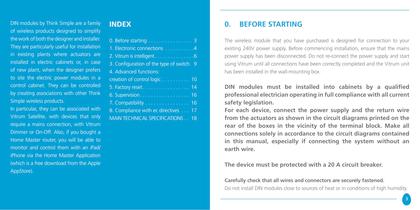
DIN modules by Think Simple are a family of wireless products designed to simplify the work of both the designer and installer. They are particularly useful for installation in existing plants where actuators are installed in electric cabinets or, in case of new plant, when the designer prefers to site the electric power modules in a control cabinet. They can be controlled by creating associations with other Think Simple wireless products. In particular, they can be associated with Vitrum Satellite, with devices that only require a mains connection, with Vitrum Dimmer or On-Off. Also, if you...
Open the catalog to page 2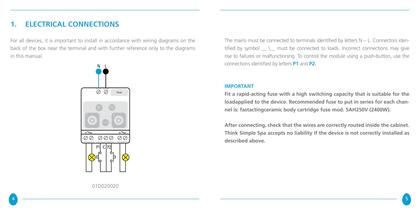
1. ELECTRICAL CONNECTIONS For all devices, it is important to install in accordance with wiring diagrams on the back of the box near the terminal and with further reference only to the diagrams in this manual. Fuse The mains must be connected to terminals identified by letters N – L. Connectors identified by symbol __ \__ must be connected to loads. Incorrect connections may give rise to failures or malfunctioning. To control the module using a push-button, use the connections identified by letters P1 and P2. IMPORTANT Fit a rapid-acting fuse with a high switching capacity that is suitable for...
Open the catalog to page 3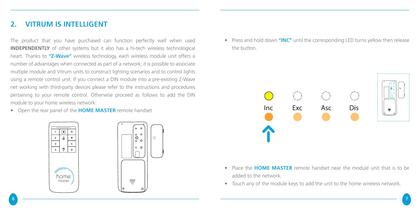
2. VITRUM IS INTELLIGENT The product that you have purchased can function perfectly well when used INDEPENDENTLY of other systems but it also has a hi-tech wireless technological heart. Thanks to “Z-Wave” wireless technology, each wireless module unit offers a number of advantages when connected as part of a network; it is possible to associate multiple module and Vitrum units to construct lighting scenarios and to control lights using a remote control unit. If you connect a DIN module into a pre-existing Z-Wave net working with third-party devices please refer to the instructions and procedures...
Open the catalog to page 4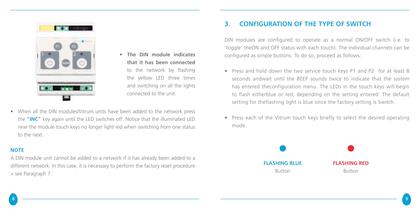
3. CONFIGURATION OF THE TYPE OF SWITCH • The DIN module indicates that it has been connected to the network by flashing the yellow LED three times and switching on all the lights connected to the unit. • When all the DIN modules/Vitrum units have been added to the network press the “INC” key again until the LED switches off. Notice that the illuminated LED near the module touch keys no longer light red when switching from one status to the next. NotE A DIN module unit cannot be added to a network if it has already been added to a different network. In this case, it is necessary to perform the...
Open the catalog to page 5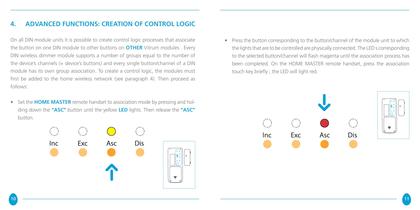
4. ADVANCED FUNCTIONS: CREATION OF CONTROL LOGIC On all DIN module units it is possible to create control logic processes that associate the button on one DIN module to other buttons on OTHER Vitrum modules . Every DIN wireless dimmer module supports a number of groups equal to the number of the device’s channels (= device’s buttons) and every single button/channel of a DIN module has its own group association. To create a control logic, the modules must first be added to the home wireless network (see paragraph 4). Then proceed as follows: • Press the button corresponding to the button/channel...
Open the catalog to page 6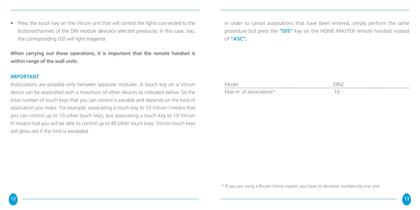
• Press the touch key on the Vitrum unit that will control the lights connected to the buttons/channels of the DIN module device(s) selected previously. In this case, too, the corresponding LED will light magenta. In order to cancel associations that have been entered, simply perform the same procedure but press the “DIS” key on the HOME MASTER remote handset instead of “ASC”. When carrying out these operations, it is important that the remote handset is within range of the wall units. IMPORTANT Associations are possible only between separate modules. A touch key on a Vitrum device can be associated...
Open the catalog to page 7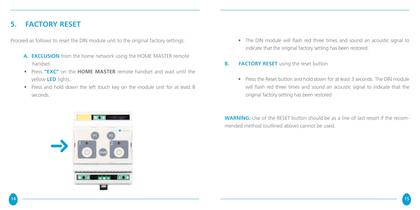
5. FACTORY RESET • The DIN module will flash red three times and sound an acoustic signal to indicate that the original factory setting has been restored. Proceed as follows to reset the DIN module unit to the original factory settings: A. EXCLUSION from the home network using the HOME MASTER remote handset. • Press “EXC” on the HOME MASTER remote handset and wait until the yellow LED lights.. • Press and hold down the left touch key on the module unit for at least 8 seconds. B. FACTORY RESET using the reset button • Press the Reset button and hold down for at least 3 seconds. The DIN module...
Open the catalog to page 8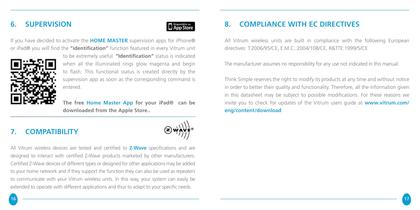
6. SUPERVISION 8. COMPLIANCE WITH EC DIRECTIVES If you have decided to activate the HOME MASTER supervision apps for iPhone® or iPad® you will find the “identification” function featured in every Vitrum unit to be extremely useful. “Identification” status is indicated when all the illuminated rings glow magenta and begin to flash. This functional status is created directly by the supervision app as soon as the corresponding command is entered. All Vitrum wireless units are built in compliance with the following European directives: T.2006/95/CE, E.M.C.:2004/108/CE, R&TTE:1999/5/CE The free Home...
Open the catalog to page 9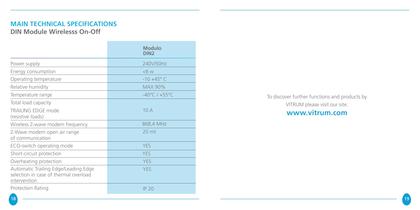
MAIN TECHNICAL SPECIFICATIONS DIN Module Wirelesss On-Off discover further functions and products VITRUM please visit our site:
Open the catalog to page 10
H O M E C O N T R O L by Think Simple SpA Head Office viale Lino Zanussi, 3 33170 Pordenone Tel +39 0434 516 216 Fax +39 0434 516 230 Sales Office corso Garibaldi, 86 20121 Milano Tel +39 02 655 600 29 Fax +39 02 454 982 95 www.thinksimple.it [email protected] 1000121 - 6/2012
Open the catalog to page 11All Vitrum Design catalogs and technical brochures
 Vitrum design
72 Pages
 Catalogue 2014
52 Pages
Archived catalogs
 Vitrum MAster On-Off Wireless
20 Pages
 Vitrum Scene Control Panel
20 Pages
 Roller Blind
28 Pages
 Warnings
4 Pages
 Home Master Remote Handset
24 Pages
 Vitrum Dimmer Classic
24 Pages
 Vitrum Dimmer Wireless
32 Pages
 Vitrum Satellite Wireless
28 Pages
 Vitrum On-Off Classic
16 Pages
 Vitrum On-Off Wireless
24 Pages