- Catalogs
- Routon Electronic Co.,Ltd.
- Quick Use Guide


Quick Use Guide
Quick Use Guide
Catalog excerpts
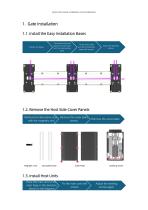
Quick Use Guide-Installation and Initialization 1. Gate Installation 1.1. Install the Easy Installation Bases Thread the wire and splice the main base with the connecting base Fix the main base and the connecting base with screws Adjust the leveling screws 1.2. Remove the Host Side Cover Panels Remove the decorative strips Remove the cover plate with the magnetic tool screws Remove the cover plate 1.3. Install Host Units Place the main unit on the main base in the direction shown in the diagram Fix the main unit with screws Adjust the leveling screws again
Open the catalog to page 1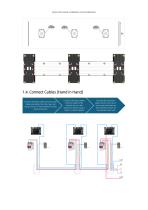
Quick Use Guide-Installation and Initialization 1.4. Connect Cables (Hand in Hand) Connect the base cable and the power' cable extending from the main unit using a hand-in-hand method via the aerial connector Connect the base cable's Connect the fire alarm Ethernet cable to the signal wires to the dry or network port on the wet contact interface on expansion board using a the expansion board of hand-in-hand method the nearest main unit
Open the catalog to page 2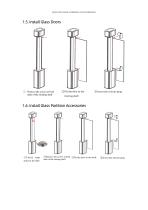
Quick Use Guide-Installation and Initialization (D Remove the screws at both ©Insert the silicone plug rotating shaft ends of the rotating shaft ©Unlock, retate and lock the shaft ©Remove the screws at both (|)Fix the door t0 the shaft ends of the rotating shaft ©Insert the silicone plug
Open the catalog to page 3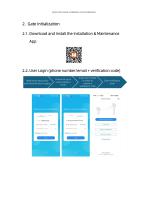
Quick Use Guide-Installation and Initialization 2. Gate Initialization 2.1. Download and Install the Installation & Maintenance App 2.2. User Login (phone number/email + verification code) Read the privacy policy and check the box to agree Choose to log in using mobile or email Enter your mobile or email to receive a verification code Enter verification code
Open the catalog to page 4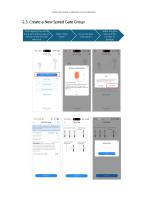
Quick Use Guide-Installation and Initialization After tapping the menu bring your phone close to the top of the left-side main unit Select the gate type and the number of passage [Scan] : After adding the company in the [Management] client, generate a maintenance QR code. Click Scan for Maintenance in the upper-right menu: I Input 1 : Enler maintenance Information in the interface below. Server Deployment Cloud platform - China Gate Group Name* input Organization Name* Input Administrator account* Input mobile or email Important Note:The super administrator is the hlghes 1-level administrator...
Open the catalog to page 5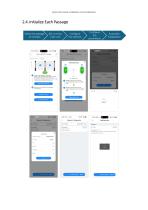
Quick Use Guide-Installation and Initialization 2.4. Initialize Each Passage Select the passage to Initialize BLE connect main unit Automatic initialization
Open the catalog to page 6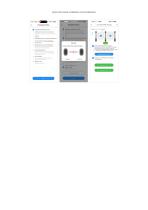
A Confirm the direction of the gate Please confirm that the indicator light on the Main Unit matches the color shown in the picture II they are not consistent, please click on the [ Flip ] button below the pillar to switch colors ® Passageway Modules Check Establishes connections for devices within the Passageway including Main Unit, Passageway Detection Module, Motor Drive Module, and other Modules Querying... Passageway Detection Module Calibration Performs adaptive learning for Passageway detection. Requires gate securely installed and passage cleared. Automatic Door Closure Calibration Identifies...
Open the catalog to page 7All Routon Electronic Co.,Ltd. catalogs and technical brochures
 Compact Speed Gate
20 Pages
 Operations Management Manual
67 Pages
Archived catalogs
 Product Introduction
20 Pages