- Catalogs
- Routon Electronic Co.,Ltd.
- Compact Speed Gate Operation Management Manual V1.4 Updated on November 25, 2025


Compact Speed Gate Operation Management Manual V1.4 Updated on November 25, 2025
Compact Speed Gate Operation Management Manual V1.4 Updated on November 25, 2025
All rights to the manual are reserved by Exquisite Electronics Co., Ltd. Reproduction or modification without permission is prohibited. The manual is provided 'as is' without warranties, and Exquisite Electronics is not liable for any damages arising from its use.
This manual provides guidance on using the Compact Speed Gate's Operation Management software for PC and mobile devices. Key functions include administrator management, gate control, whitelist/blacklist management, access management, and visitor management.
Instructions for downloading and installing the management client and app are provided, with specific steps for different operating systems.
Users log in using the GatesMana client, selecting server type and entering credentials. Super administrator accounts are created during installation, while regular administrators are added by the super administrator.
Users can modify personal information and change passwords in the Personal Center. Interface language and scaling can be adjusted.
Super administrators can modify company settings, including access record retention and profile picture storage.
Super administrators can create ordinary administrators and assign permissions related to gate management, staff management, and visitor management.
The speed gate operates in various modes: Verify-passing, Free-passing, Keep open, Forbidden-passing, and Fire alarm mode.
Users can manage time-based work mode policies for gates, including passage direction, working mode, execution period, and effective dates.
Functions include network configuration, parameter configuration, log download, and firmware upgrades.
Manage blacklists and whitelists, including personnel information. Passive facial data collection is used for identity verification.
Manage access permission policies for whitelisted personnel.
Query pass records for whitelisted personnel and visitors.
Register visitor information, view passing records, and generate QR codes for access.
Users can view visitor access records and invite visitors using the [Sesame Open] mobile app.
Whitelist personnel can download the app and log in using a verification code. The app supports Bluetooth identification for gate access.
Authorized users can remotely control gates via Bluetooth, with functions like opening, keeping open, and denying access.
The system supports facial recognition, NFC card, and ID card data collection.
Detailed configuration instructions for gate parameters, including time zone, language, authentication methods, and security settings.
Describes the activation and pairing process for card-type Bluetooth remote controls.
Outlines the procedure for pairing a remote control button with a channel and describes functionalities of a card-type Bluetooth remote control.
- Single Aisle - Open Door: Press any key [A~F] to open the door inward, which closes automatically after passing through the gate or within 10 seconds.
- Single Channel - Normally Open: Press any key [A~F] and hold for more than 2 seconds to keep the speed gate normally open inward.
- Single Channel - Cancel Normally Open: Press any key [A~F] to return the channel to its current normal mode.
- Single Aisle - Open Door: Similar to default mode, press any key [A~F] to open the door inward.
- Single Channel - Normally Open: Press any key [A~F] for more than 2 seconds to keep the speed gate normally open inward.
- Single Channel - Cancel Normally Open: Press and hold the button for more than 2 seconds to restore all channels to their current normal mode.
Catalog excerpts
Compact Speed Gate - Compact Operation Management Manual Compact Speed Gate Operation Management Manual V1.4 Updated on November 25, 2025
Open the catalog to page 1
Compact Speed Gate - Compact Operation Management Manual Legal Notice All copyrights of this manual belong to © Exquisite Electronics Co., Ltd. (hereinafter referred to as "Exquisite Electronics"), and Exquisite Electronics reserves all rights. Without the express written permission of Exquisite Electronics Co., Ltd., you may not copy, excerpt, translate or modify part or all of the content of this manual for any purpose, in any form or by any means. Unless otherwise agreed, Exquisite Electronics does not provide any express or implied representations or warranties for this manual. Clarity About...
Open the catalog to page 2
Compact Speed Gate - Compact Operation Management Manual 3 Nor shall we compensate for any special, incidental, incidental or indirect damages arising from the use of this manual or the use of Exquisite electronic products, including but not limited to losses arising from loss of business profits, system failure, loss of data or documents. • You know the open nature of the Internet, and there may be risks such as network attacks, hacker attacks, virus infections, etc. when you connect your products to the Internet, and Exquisite Electronics is not responsible for the abnormal work of the product,...
Open the catalog to page 3
Compact Speed Gate - Compact Operation Management Manual 4 Users use the [Operation Management] PC client or [Operation Management] App to complete the management function of Exquisite Intelligent Short Track Speed Gate (hereinafter referred to as "Speed Gate"). [Run Management] PC client versions include Windows, MacOS, and Linux (X86, ARM, LongArch) versions; [ Run Management] App versions include Android and iOS versions. This manual only describes the software functions of the [Operation Management] PC client, and the functions of the [Operation Management] App are basically the same as those...
Open the catalog to page 4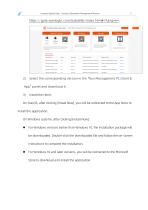
Compact Speed Gate - Compact Operation Management Manual 5 Compact Speed Gate - Compact Operation Management Manual 5 2) Select the corresponding version in the "Run Management PC Client & App" panel and download it. On macOS, after clicking [Install Now], you will be redirected to the App Store to install the application. On Windows systems, after clicking [Install Now]: • For Windows versions earlier than Windows 10, the installation package will be downloaded. Double-click the downloaded file and follow the on-screen instructions to complete the installation. • For Windows 10 and later versions,...
Open the catalog to page 5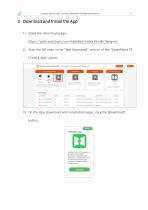
Compact Speed Gate - Compact Operation Management Manual 6 Document Name Version Q Function and Technical Speci... V3.3 Q Third -party Integration Soluti... VI .1 Document Introduction Update Information Operate Introduction to the product performance a... Modify the interface description and some... Download Introduction of the integration solutions of.,. Update the interface connections related t... Download Brief Guide to Product Installation and Init... Initial release. Download "GatesMana" App is the management tool for Exquisite Compact Speed Gate.Feactures include:gates mode configurations,...
Open the catalog to page 6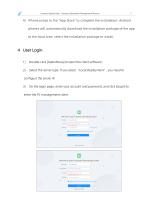
Compact Speed Gate - Compact Operation Management Manual 7 4) iPhone jumps to the "App Store" to complete the installation; Android phones will automatically download the installation package of the app to the local area, select the installation package to install. 1) Double-click [GatesMana] to open the client software; 2) Select the server type. If you select "Local Deployment”, you need to configure the server IP. 3) On the login page, enter your account and password, and click [Login] to enter the PC management client.
Open the catalog to page 7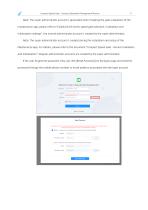
Compact Speed Gate - Compact Operation Management Manual Note: The super administrator account is generated when installing the gate installation of the maintenance app, please refer to "E246X/E247X Series speed gate selection, installation and initialization settings", the normal administrator account is created by the super administrator. Note: The super administrator account is created during the installation and setup of the Maintenance App. For details, please refer to the document "Compact Speed Gate – Device Installation and Initialization." Regular administrator accounts are created by...
Open the catalog to page 8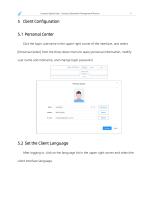
Compact Speed Gate - Compact Operation Management Manual 9 Click the login username in the upper right corner of the interface, and select [Personal Center] from the drop-down menu to query personal information, modify user name and nickname, and change login password. BHfiW | Switch company) xiaoMpeng- English- — 100% + After logging in, click on the language list in the upper right corner and select the client interface language.
Open the catalog to page 9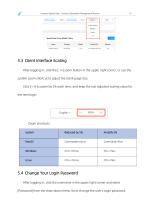
Compact Speed Gate - Compact Operation Management Manual 10 After logging in, click the [-/+] zoom button in the upper right corner, or use the system zoom shortcut to adjust the client page size. Click [-/+] to zoom by 5% each time, and keep the last adjusted scaling value for the next login. After logging in, click the username in the upper right corner and select [Password] from the drop-down menu list to change the user's login password.
Open the catalog to page 10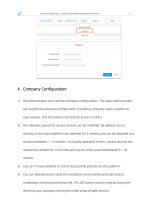
Compact Speed Gate - Compact Operation Management Manual 11 1) All administrators can view the company configuration. The super administrator can modify the company configuration (including company name, whether to save avatars, and the retention period for access records). 2) The retention period for access records can be modified. By default, access records on the cloud platform are retained for 3 months and can be adjusted to a duration between 1 ~ 6 months. For locally deployed servers, access records are retained by default for 12 months and can be set to a period between 6 ~ 36 months....
Open the catalog to page 11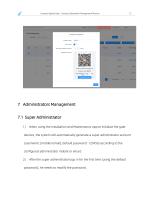
Compact Speed Gate - Compact Operation Management Manual 12 1) When using the Installation and Maintenance app to initialize the gate devices, the system will automatically generate a super administrator account (username: [mobile/email], default password: 123456) according to the configured administrator mobile or email; 2) After the super administrator logs in for the first time (using the default password), he needs to modify the password.
Open the catalog to page 12All Routon Electronic Co.,Ltd. catalogs and technical brochures
 Compact Speed Gate
20 Pages
 Operations Management Manual
67 Pages
 Quick Use Guide
7 Pages
Archived catalogs
 Product Introduction
20 Pages