
- Catalogs
- QAWRUMS Ltd.
- RAEM1 USER’S MANUAL Operation Guide

RAEM1 USER’S MANUAL Operation Guide

RAEM1 USER’S MANUAL Operation Guide
- Acoustic Emission Technology Introduction: Acoustic emission (AE) involves transient elastic waves from rapid energy release in materials, used to evaluate material performance and structural integrity.
- Main Purpose: Locating AE sources, analyzing their properties, determining AE occurrence time and load, and assessing severity.
- Characteristics: AE testing is dynamic, sensitive to linear defects, provides real-time defect information, and is suitable for complex geometries.
- Applications: Widely used in petrochemical, power, material testing, civil engineering, aerospace, metal processing, and transportation industries.
- Key Terms: Definitions of terms like starting point, end point, duration, rise time, sensor array, attenuation, and more are provided.
- RAEM1 Introduction: Overview of the RAEM1 system, its hardware, technical specifications, and quick start guide.
- Configuration Tool and Software: Introduction to software and cloud tools for RAEM1 configuration.
- Details on configuring Ethernet, WiFi, and 4G connections for RAEM1.
- Instructions on using RAEM1 configuration software, including sample, network, storage, and system settings.
- Device management, data monitoring, waveform analysis, and personal settings on the Qingcheng IoT Cloud Platform.
- Steps for registering, creating products and devices, editing TSL models, and activating devices on the Alibaba Cloud Platform.
- Guidelines for Ethernet and Wi-Fi transmission using U3H software.
- Accessing data via RAEM1 configuration software and cloud server.
- Methods and tools for analyzing data collected from RAEM1.
- Details on TCP and 485 integration protocols for third-party development.
- Channel: Pathway for acoustic emission signals to enter the acquisition card for processing.
- Sampling Rate: Number of sampling points per second, e.g., 10MSPS means 10 million points per second.
- Sampling Accuracy: Determines signal resolution within the input voltage range, e.g., 16-bit accuracy divides 20V into 65,536 units.
- TCP/IP: Widely used network communication protocol.
- AST: Automatic sensor testing to evaluate sensor sensitivity.
- ADC: Converts analog voltage signals into digital signals.
- Analog Filter: 4th order Butterworth filter used before ADC.
- Pre-amplifier: Amplifies weak voltage signals for long-distance transmission.
- Coaxial Cable: Transmits pre-amplifier output signals, typically with 75 Ω impedance.
- IoT: Internet of Things.
- Hit Extract Sample Mode: Uses thresholds to define AE signal hits.
- Time Parameter Sample Mode: Collects AE hits based on set thresholds and sample length.
- System Rating: Parameters are rated based on intensity and activity.
- EET: Enforced end time for AE hits, effective only in Hit Extract mode.
- HDT: Hit definition time, determines the end point of a hit signal.
- HLT: Hit lock time, a window to ignore signals after an AE event.
- U3H: Refers to data file format or software server.
The RAEM1 Remote Acoustic Emission system uses ZYNQ technology with an AD4001 chip, supporting IoT operations like cloud data storage. It consists of three parts: RAEM1 (sensor, acquisition, communication), Platform (cloud server, LAN, PC, phones), and Client end (phones, PC, screens). The system integrates AE signal acquisition, analysis, storage, and communication. It features multiple data communication methods and built-in SD storage to prevent data loss.
The RAEM1 system includes a cylinder with an external sensor, 12V DC power supply, and communication methods like Ethernet and Wi-Fi or 4G. It features a power switch, cable socket, sensor connector, antenna connector, and indicator lights for power, operation, and alarms.
- Single channel AE input with 2MHz sampling rate and 16-bit accuracy.
- Signal input bandwidth of 10k-1000kHz and dynamic range of 70dB.
- Compatible with integral preamp sensors.
- Flexible data collection settings and noise ASL better than 30dB.
- Output data types include waveform, parameters, and parameter ratings.
- Built-in 64G memory SD card for data storage.
- Optional communication methods: 4G, Wi-Fi, Ethernet, RS485.
- Operational temperature: -20℃ to +50℃; Protection grade: IP65.
Steps include reading the RAEM1 label, connecting cables and power, attaching the antenna and sensor, and configuring Ethernet settings for first-time use. The device automatically connects to Wi-Fi and starts data acquisition if previously configured.
RAEM1 automatically collects data and communicates through existing configurations. Users can modify settings via communication methods, with real-time parameter display supported. Factory settings are recommended, but modifications can be saved as configuration files. Data can be accessed and downloaded through various methods, including Qingcheng IoT Cloud and U3H software.
- Ethernet Connection: RAEM1 can connect directly to a PC or through switches and routers. The default IP address is 192.168.0.101. Configuration involves setting the Ethernet Duplex Mode and IPv4 settings.
- Wi-Fi Connection: Two modes are available: Hotspot and Router. Hotspot mode uses a default configuration with a specific SSID and password. Router mode requires configuring the RAEM1 to connect through a router, ensuring no network address conflicts.
- 4G Connection: Requires a 4G SIM card. The setup involves inserting the SIM card and possibly configuring the APN settings through the RAEM1 Configuration software.
- RAEM1 Configuration Software: A Windows program for configuring RAEM1 devices. It requires disabling the firewall and WLAN on the PC. The software interface includes device configuration information and a device list. Users can modify settings, update firmware, and manage device operations.
- Qingcheng IoT Cloud and Alibaba Cloud: Platforms for remote monitoring and configuration of RAEM1 devices, supporting real-time data viewing and online debugging.
- U3H Software: Used for viewing real-time AE feature parameters and waveforms collected by RAEM1.
- Ethernet Configuration: Involves setting network properties and ensuring proper cable connections.
- Wi-Fi Configuration: Requires selecting the appropriate mode (Hotspot or Router) and configuring network settings accordingly.
- 4G Configuration: Involves inserting a SIM card and possibly adjusting APN settings for network connectivity.
- Ensure proper network settings to avoid conflicts and ensure connectivity.
- Follow detailed steps for each connection method to ensure successful configuration.
- Use the RAEM1 Configuration software for initial setup and ongoing management of device settings.
The document provides an overview of the RAEM1 Configuration software functions, focusing on sample settings, network configurations, system settings, and data management.
Sample Settings
Sample Mode: Two modes are available: Hit Extract Mode and Time Parameters Mode. Hit Extract Mode defines AE hit events by threshold and time parameters, while Time Parameters Mode continuously samples AE signals.
Sample Time Modes: Includes continuous, timing, and interval sampling. Continuous sampling starts with a trigger, timing sampling is set for specific periods, and interval sampling defines intervals and durations.
Sample Parameters: Key parameters include sample length, speed, threshold, EET (Enforced End Time), HDT (Hit Definition Time), and HLT (Hit Lock Time). These parameters define how and when AE signals are recorded.
Filter: Digital filters are used to refine signal data, with options for band-pass, low-pass, and high-pass filtering.
System Ratings: Evaluates AE events based on intensity and activity levels, adhering to NBT47013.9-2015 standards.
Network Settings
Ethernet Settings: Supports static and dynamic IP configurations.
Wi-Fi Settings: Default mode is Hotspot, with options to switch to router mode for broader connectivity.
System Timing: Synchronizes RAEM1 clocks via network, local wired, or wireless methods.
RS485 Communication: Uses Qingcheng's protocol for data and control commands.
Storage Settings
Options to save waveform and parameters locally or upload to cloud servers. Data can be sent to U3H software for real-time analysis.
System Settings
Time Calibration: Aligns device clock with system clock.
Sample State: Controls data acquisition start and stop.
Firmware Update: Allows uploading of update files for system enhancements.
Other Settings: Includes debug ports and system APN, primarily for internal use.
File View
Enables viewing, downloading, and converting data files stored on the local storage card.
Users can manage files with options to download, delete, and convert files into CSV or U3H formats. Files can be merged and converted, with limitations on data size for CSV conversion. U3H conversion settings allow customization of sample rate and length.
Project Data Transmission
This section covers data transmission methods including TCP and QC Aliyun modes. TCP modes involve reporting data at set intervals, with TCP mode v2 offering more parameters. QC Aliyun mode connects devices to Alibaba Cloud for real-time data viewing, requiring internet-enabled devices.
Qingcheng IoT Cloud Platform
The platform allows remote device management and configuration. Users can log in to view and modify device settings, manage data, and perform actions like firmware upgrades and alarm settings. Device management includes editing, deleting, and configuring devices, with options for parameter, rating, and timing configurations.
Parameter Configuration
Users can set thresholds, sampling rates, and modes (envelope or continuous). Parameters like enforced end time, hit defined time, and hit lock time are adjustable for envelope sampling mode. Continuous sampling mode settings include sampling length, times, and intervals.
Rating Configuration
Rating evaluates acoustic emission events based on defined rules, setting intensity and activity levels for alarms. Users can configure these levels to trigger alarms or actions based on comprehensive ratings.
The document outlines a comprehensive rating system that adheres to the NBT47013.9-2015 standard. The system evaluates intensity and activity levels, with intensity not exceeding 3 levels and activity not exceeding 4 levels to obtain a comprehensive rating. A table (Table 5-1) provides the rating level standards.
Configuration Settings
- Enable Rating: Determines if the rating function is active.
- Intensity Config: Intensity should not exceed 3 levels. Multiple rules can be added under the same intensity level, with an OR condition between rules and an AND condition within a rule.
- Activity Config: Activity cannot exceed 4 levels. Each intensity greater than or equal to level 1 counts as one activity.
- Rating Interval: Default is 20 seconds, during which data is collected and rated.
- Rating Report Criteria: Options to report intensity levels, with alarms triggered at specified levels.
- Intensity Reporting Min. Interval: Default is 10 seconds, preventing repeated alarms for the same intensity level within this period.
Timing and Wire Break Configuration
- Timing Configuration: Allows for continuous or interval sampling modes, with configurable sampling and sleep times.
- Wire Break Rate Configuration: Sets criteria for determining wire break rates based on intensity levels.
Data Management and Monitoring
- Data Manage: Allows deletion of data to free up storage space.
- Firmware Upgrade: Describes the process for upgrading device firmware via FTP.
- Device Alarm: Configures alarm settings for intensity, comprehensive rating, and activity levels.
- Wire Break Rate Alarm: Sets alarm information for wire break rates.
- Data Monitoring: Displays parameter changes over time, with options to filter by company, group, device number, and time.
Waveform and Rating Analysis
- Real-time Waveform: Displays real-time waveforms, with historical data available on a separate page.
- History Waveform: Shows all historical waveforms, with options to filter by time and device.
- Rating: Evaluates acoustic emission events, combining intensity and activity levels to meet comprehensive rating standards.
- Rating Data: Displays intensity and comprehensive rating levels, with detailed tables for each.
- Comprehensive Rating: Shows comprehensive rating history in a line diagram format.
- Continuous Intensity Rating: Displays intensity rating trends over time.
- Activity Statistics: Shows activity level trends over time.
Personal and Wire Break Monitoring
- Personal Setting: Allows users to set personal information and configure device and wire break alarms.
- Wire Break Monitoring: Monitors wire break rates and trends, particularly for bridge suspension cables.
This section discusses the monitoring of wire breaks, which are determined by the intensity and activity of the setting. The chart displaying this information may span multiple pages.
Global Setting
The global setting section includes performing an AST test on selected monitoring devices. Users can enable or disable the AST test, set the detection time interval in seconds, and choose the desired devices. Once settings are submitted, the AST function activates automatically, and results are displayed with device number, time, and amplitudes.
Hit Monitor & Warning Monitor
The Hit Monitor page displays the number of AE hits for one or multiple devices. The Warning Monitor page summarizes device alarm triggers, requiring users to configure alarm functions and set trigger levels. Alarms are displayed in line charts, showing intensity, activity, or comprehensive rating alarms.
Auxiliary Tools
This section covers the Downloads function, allowing users to package and download data packets from the cloud platform. Users must enable data upload to the cloud and specify data types. Data is packaged in a zip file, and the Downloads page displays device number, file name, file size, time labels, status, and operation buttons.
Qingcheng Alibaba Cloud Platform
Qingcheng IoT AE devices can upload data to the Alibaba Cloud IoT platform, supporting real-time parameter views and online debugging. Devices require internet access via 4G, Wi-Fi, or Ethernet. Users must register an Alibaba account to access the platform, with Qingcheng providing technical support.
Registering and Activating Devices
Steps for registering on Alibaba Cloud include creating an account, activating the IoT platform, and managing devices. Users create products and devices, edit TSL models, and activate devices by configuring product keys and device secrets.
Viewing Devices
Users can view devices on the Alibaba Cloud platform, with real-time data display and online debugging options. Currently, only parameters and configurations are uploaded, not waveform data.
U3H (RAEM1) Software Online Acquisition
The U3H software supports RAEM1 online data acquisition, displaying real-time parameters and waveforms. It connects RAEM1 to a PC via Ethernet or Wi-Fi, requiring specific IP configurations and firewall settings. The software allows for single or multiple RAEM1 connections, with data saved in U3H format.
To configure dynamic IP networking, change the settings to Dynamic IP and connect the devices to the router. In the RAEM1 Configuration software, disable local data storage options to prevent data loss and enable data sending to U3H. For static IP mode, set the PC IP address between 192.168.0.20 and 192.168.0.30. Configure the U3H software with the PC's IP address, default port 18883, and appropriate sample length. Define device and channel numbers, save changes, and start data acquisition.
Wi-Fi Hotspot Mode: Connect RAEM1 to a PC via Wi-Fi Hotspot. Disable local data storage and enable data sending to U3H. The default hotspot address is 192.168.100.1. Configure U3H software with the PC's IP address and start data acquisition.
Wi-Fi Router Mode: Connect multiple RAEM1s to a PC through a router. Disable local data storage and enable data sending to U3H. Configure U3H software with the PC's IP address and start data acquisition.
RAEM1 data can be accessed via RAEM1 Configuration software or Qingcheng cloud platform. The software allows data downloads and format conversion. Data can also be uploaded to Qingcheng IoT Cloud or AWS S3. For AWS S3, users must configure RAEM1 with AWS credentials and settings.
RAEM1 data requires format conversion for analysis in U3H software or third-party tools. Qingcheng’s RAE1toU3H software facilitates this conversion. The software supports multiple-channel data conversion and CSV format output for third-party analysis.
RAEM1 provides TCP and RS485 interfaces for third-party development. The TCP protocol supports parameter and waveform transmission in U3H mode. Configuration involves setting IP addresses, ports, and enabling data sending functions in the RAEM1 Configuration software.
- Rate: 57600
- Bits: 8
- Stop bit: 1
- Verification: none
- Flow control: none
- Endianness: Little Endian
- Arrival time (seconds): unsigned int, 4 bytes
- Arrival time (micro-seconds): unsigned int, 4 bytes
- Protocol Version: 4 bytes
- Waveform points: unsigned int, 4 bytes
- Sample speed (K/S): unsigned int, 4 bytes
- Gain, preamplifier: unsigned int, 4 bytes
- Enlarge, circuit magnification: Double, 8 bytes
- Waveform data: Each waveform has 2 bytes, totaling 2N bytes for N waveforms
To send data as a 485 Master, activate the 485 Send Param function in RAEM1 Configuration software. The protocol format includes:
- Protocol Header: 4 bytes, 0xA5A5A5A5
- Protocol Content: Varies based on protocol details
- CRC Verification: 2 bytes, specific to protocol content
- Protocol End: 4 bytes, 0xFCFCFCFC
To send data as a 485 Slave, activate the 485 Control function in RAEM1 Configuration software. The protocol format is similar to the Master mode.
When both 485 Send Param and 485 Control functions are enabled, the device operates in Master/Slave mode:
- Defaults to Master mode, sending parameter data.
- Every 5 seconds, sends a switch mode command to transition to Slave mode for control command transmissions. The Slave must respond within 1 second.
- After receiving a control command, it switches back to Master mode to resume data transmission.
For detailed protocols, contact Qingcheng company.
Catalog excerpts

RAEM1 USER’S MANUAL Operation Guide
Open the catalog to page 1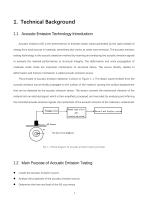
1. Technical Background 1.1 Acoustic Emission Technology Introduction Acoustic emission (AE) is the phenomenon of transient elastic waves generated by the rapid release of energy from local sources in materials, sometimes also known as stress wave emission. The acoustic emission testing technology is the acoustic detection method by receiving and analyzing the acoustic emission signals to evaluate the material performances or structural integrity. The deformation and crack propagation of materials under stress are important mechanisms of structural failure. The source directly related to deformation...
Open the catalog to page 4
• Assess the severity of the acoustic emission source. 1.3 Characteristics of Acoustic Emission Testing The discovery of each acoustic emission source indicates the application of AE system. The AE testing method is different from other conventional NDT methods in many aspects: • It is a dynamic detection method. The detected energy comes from the object itself, not from the detection instrument. • It is sensitive to linear defects and can detect the movement of the defects under external structural stress. • It can detect and evaluate the state of the defects in the whole structure. • The system...
Open the catalog to page 5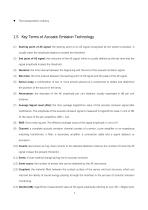
1.5 Key Terms of Acoustic Emission Technology (1) Starting point of AE signal: the starting point of an AE signal recognized by the system processor, is usually when the amplitude begins to exceed the threshold. (2) End point of AE signal: the end point of the AE signal, which is usually defined as the last time that the signal amplitude crosses the threshold. (3) Duration: the time interval between the beginning and the end of the acoustic emission signal. (4) Rise time: the time interval between the starting point of AE signal and the peak of the AE signal. (5) Sensor array: a combination of...
Open the catalog to page 6
where A is the amplitude voltage value of the measured AE signal. (15) Dynamic range: the decibel difference between the overload level and the minimum signal level (usually determined by one or more factors in the noise level, low-level distortion, interference, or resolution level) in a system or sensor. (16) Effective sound velocity: the sound velocity calculated based on arrival time and distance determined by the artificial acoustic emission signal, for the use of source location. (17) Burst acoustic emission: the qualitative description of the discrete signals related to an independent...
Open the catalog to page 7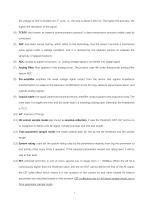
the voltage of 20V is divided into 2 units, i.e., the step is about 0.305 mV. The higher the accuracy, the higher the resolution of the signal. (4) TCP/IP: also known as network communication protocol, a data transmission protocol widely used by computers. (5) AST: automatic sensor testing, which refers to the technology that the sensor transmits a mechanical pulse signal under a voltage excitation, and it is received by the adjacent sensors to evaluate the sensitivity of adjacent sensors. (6) ADC: analog to digital conversion, i.e., analog voltage signal is converted into digital signal. (7)...
Open the catalog to page 8
(15) HDT: Hit definition time, also known as the envelop definition time, in unit of micro-second (μs). the setting range is 100 ~ 50000μs (positive integer), can be directly input in the text box. It refers to the waiting time interval of a hit signal to correctly determine the end point of that hit signal. When the set HDT value is greater than the time interval T between two adjacent wave packets that exceed the threshold, the two wave packets will be classified as one acoustic emission hit signal; if the set HDT value is less than the time interval T when the two wave packets cross the threshold,...
Open the catalog to page 9
2. Product Introduction RAEM1 Remote Acoustic Emission system adopts ZYNQ approach with AD4001 chip as the base layer and 4G/Wi-Fi/Ethernet built-in, and supports IoT operations, such as cloud data storage and cloud data reporting. The up-to-date firmware version is V1.0.56_20220530, and the configuration software version is 2.14.2.35. 2.1 RAEM1 Introduction RAEM1 remote acoustic emission system consists of three parts: ⚫ RAEM1 (AE sensor, signal acquisition, communication) Platform (cloud server, LAN, PC, phones) Client end (phones, PC, screens) RAEM1 is an intelligent IoT acoustic emission...
Open the catalog to page 10
remote communication modules. Acoustic emission sensors can be built-in or external to RAEM1. Power supply can also be built-in or external. Multiple data communication methods (Wi-Fi/ 4G/ Ethernet/ RS485 etc.) can be selected based on the user’s demands. There is SD storage card built-in to prevent stored data loss when the power is lost. Signal conditioning, including impedance. transformation, amplification, filtering Analog to digital conversion and digital signal processing, including A/D, SoC, FPGA and ARM signal processing. Communication module: 4G / Wi-Fi / Ethernet / RS485 IoT platform,...
Open the catalog to page 11
The regular RAEM1 system consists of a RAEM1 cylinder connected with an external sensor and 12V DC power supply, and one or two types of communication methods, including Ethernet and Wi-Fi or 4G network. 5$ (Note): (Solid Line) : (wired connection) (Dotted Line) : (wireless connection) (Module built-in) Cloud Platforms Server (Module built-in) Fig. 2-3 Regular version of RAEM1 connection diagram Figure 2-4 is a set of RAEM1 hardware which equips with the Ethernet and 4G communication. The set includes a RAEM1 with a magnet base, an integral preamp sensor (and the magnetic holder), a 4G extension...
Open the catalog to page 12
Connector with Ethernet RAEM1 Sensor and magnetic holder Sensor Coaxial cable Fig. 2-4 Regular version of RAEM1 set hardware. Fig. 2-5 Regular version of RAEM1 top part function diagram
Open the catalog to page 13
2.4 Quick Start of RAEM1 The regular version of RAEM1 (Wi-Fi + Ethernet) connection steps are as followed: 1) Read the RAEM1 label to figure out the match power adaptor and sensor. The input voltage is 12V. The
Open the catalog to page 14
sensor type is normally the integral sensor with built-in preamplifier. The preamp voltage is supplied by RAEM1 sensor port. The analog filter in RAEM1 also requires the sensor frequency range to match. If mismatching the sensor type, it may cause some damages on the sensor or not fully functioning. So please pay attention to the label. --\ RAEM1 SN:qc_raem1_164 Input: 12V/1A Output: 28V Filter: 125-170kHz (150kHz) Debug Fbrt: 6171 https ://w w w .aendt.com __• Fig. 2-6 Regular version of RAEM1 Product Label 2) Plug in the wire cable (one with Ethernet cable and the power cable) to the cable...
Open the catalog to page 15
