


ATRIUM

ATRIUM
The ATRIUM Software V4.31 is an advanced access control management tool capable of managing up to 500 doors, 10,000 users, and 10,000 cards. It supports 1,000 access levels, 250 schedules, 100 holidays, and 256 floors for elevator integration. The software allows for network-based monitoring and management.
The software is compatible with various Windows operating systems and requires a minimum of 1GB RAM, 6GB of hard disk space, and an Ethernet connection. Additional components needed include .NET Framework 4.5.2 and MS SQL Server Express 2012.
Installation requires administrative access on a Windows computer and can be done via a USB key or downloaded from the CDVI website. The process involves selecting the installation language, agreeing to license terms, and choosing the installation directory.
The software interface includes a dashboard, hardware, advanced configuration, and language menus. It provides access to user credentials, access configurations, control settings, and monitoring features. User rights are categorized into four levels: Installer, Administrator, Operator, and Guest.
Users must create an account and log in with default credentials, which should be changed for security reasons. Adding a controller involves reserving an IP address and synchronizing with the controller and expander modules. Sub-controllers can be added once the main controller is set as a master.
Users can be added via the Dashboard tab, with options to configure personal and professional information, access levels, and credentials. Cards can be assigned, modified, or deleted, with options for batch loading and enrollment through a door reader.
Access is managed by areas rather than individual doors, simplifying configuration. Features include anti-passback, integration with alarm systems, and flexible access levels and groups. Door settings include options for automatic unlocking and relocking based on schedules and user actions.
Includes programming macros, emails, and cameras. The system supports multiple access modes and timing settings for effective door access and alarm management. Macros automate actions based on events, and email notifications inform users of system status changes.
Procedures for replacing defective modules, firmware upgrades, synchronization, and rebooting are detailed. The system supports up to 10 door locks and 10 readers per controller, with options for modifying settings and monitoring voltage and current values.
The system allows for elevator control integration, managing up to 256 floors. Lockdown features secure buildings during threats, with options for configuring lockdown properties and testing functionality.
The document outlines a 5-year warranty offered by CDVI, covering hidden defects and applicable for products installed by qualified personnel. The warranty excludes modified products, those used with non-CDVI devices, and failures due to accidents or improper use.
Catalog excerpts

ATRIUM Software V4.31 (Up to 500 Doors) The Installer’s Choice cdvigroup.com
Open the catalog to page 1
INSTALLATION MANUAL 1] PRODUCT PRESENTATION . . . . . . . . . . . . . . . . . . . . . . . . . . . . . . . . . . . . . . . . . . . . . . . . . . . . . . 3 . . 2] NOTES AND RECOMMENDATIONS . . . . . . . . . . . . . . . . . . . . . . . . . . . . . . . . . . . . . . . . . . . . . . . . 4 . . 3] PACKAGE CONTENTS. . . . . . . . . . . . . . . . . . . . . . . . . . . . . . . . . . . . . . . . . . . . . . . . . . . . . . . . . . . . 5 4] Installing/Updating the ATRIUM software. . . . . . . . . . . . . . . . . . . . . . . . . . . . . . . . . . . . 5 5] programming . . . . . . . . . . . . . . . . . . ....
Open the catalog to page 2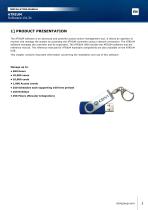
INSTALLATION MANUAL 1] PRODUCT PRESENTATION The ATRIUM software is an advanced and powerful access control management tool. It allows an operator to monitor and manage the system by accessing the ATRIUM controller using a network connection. The ATRIUM software manages the controller and its expanders. The ATRIUM USB includes the ATRIUM software and the reference manual. The reference manuals for ATRIUM hardware components are also available on the ATRIUM USB. This chapter contains important information concerning the installation and use of this software. Manage up to: • 500 Doors • 10,000 users...
Open the catalog to page 3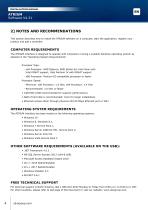
INSTALLATION MANUAL 2] NOTES AND RECOMMENDATIONS This section describes how to install the ATRIUM software on a computer, start the application, register your product and add a controller. Computer Requirements The ATRIUM interface is designed to operate with computers running a suitable Windows operating system as detailed in the “Operating System Requirements”. Processor Type: - x64 Processor: AMD Opteron, AMD Athlon 64, Intel Xeon with Intel EM64T support, Intel Pentium IV with EM64T support - x86 Processor: Pentium III-compatible processor or faster Processor Speed: - Minimum: x86 Processor:...
Open the catalog to page 4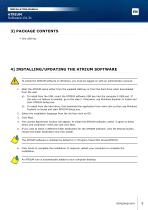
INSTALLATION MANUAL 4] Installing/Updating the ATRIUM software To install the ATRIUM software on Windows, you must be logged on with an administrator account. 1. Start the ATRIUM setup either from the supplied USB key or from the hard drive when downloaded from the web. a) To install from the USB, insert the ATRIUM software USB key into the computer’s USB port. If the auto run feature is enabled, go to the step 2. Otherwise, use Windows Explorer to locate and start ATRIUM-Setup.exe. b) To install from the hard drive, first download the application from www.cdvi.ca then use Windows Explorer to...
Open the catalog to page 5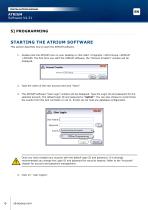
INSTALLATION MANUAL Starting the ATRIUM Software This section describes how to start the ATRIUM software. 1. Double-click the ATRIUM icon on your desktop or click Start >Programs >CDVI Group >ATRIUM >ATRIUM. The first time you start the ATRIUM software, the “Account Creation” window will be displayed. 2. Type the name of the new account and click “Save”. 3. The ATRIUM software “User Login” window will be displayed. Type the Login ID and password for the selected account. The default login ID and password is “admin”. You can also choose to synchronize the events from the A22 controller or not...
Open the catalog to page 6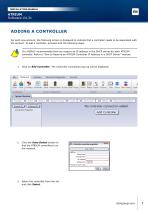
INSTALLATION MANUAL Adding a controller For each new account, the following screen is displayed to indicate that a controller needs to be associated with the account. To add a controller, proceed with the following steps. It is HIGHLY recommended that you reserve an IP address in the DHCP server for each ATRIUM controller. Refer to “How to Reserve an ATRIUM Controller IP Address in a DHCP Server” manual. 1. Click on Add Controller. The Controller Connection pop up will be displayed. 2. Click the Auto-Detect button to find the ATRIUM controller(s) on the network. 3. Select the controller from...
Open the catalog to page 7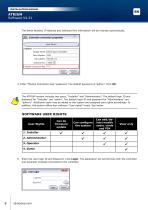
INSTALLATION MANUAL The Serial Number, IP Address and Software Port information will be inserted automatically. 4. Enter “Module Connection Key” password. The default password is “admin”. Click OK. The ATRIUM system includes two users, “Installer” and “Administrator”. The default login ID and password for “Installer” are “admin”. The default login ID and password for “Administrator” are “admin1”. Additional users may be added to the system and assigned user rights accordingly. In addition, the system offers four software “User rights” levels. See below. SOFTWARE User Rights User Rights 1. Installer...
Open the catalog to page 8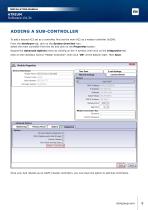
INSTALLATION MANUAL Adding a sub-controller To add a second A22 set as a controller, first set the main A22 as a master controller (A22M): From the Hardware tab, click on the System Overview icon. Select the main controller from the list and click on the Properties button. Expand the Advanced Options menu by clicking on the + symbol, then click on the Integration tab. Click on the checkbox next to “Master Controller”, then click “OK” at the bottom right. Then Save. Once your A22 reboots as an A22M (master controller), you now have the option to add Sub-Controllers.
Open the catalog to page 9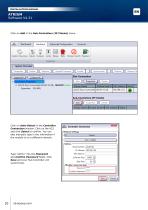
INSTALLATION MANUAL Click on Add in the Sub-Controllers (IP Clients) menu. Click on Auto-Detect in the Controller Connection window. Click on the A22 and click Select to confirm. You can also manually type in the information if the module is on a different network. Type “admin” into the Password and Confirm Password fields. Click Save and your Sub-Controller will synchronize.
Open the catalog to page 10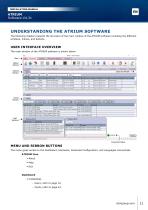
UNDERSTANDING THE ATRIUM SOFTWARE The following chapter presents the structure of the main window of the ATRIUM software including the different windows, menus, and buttons. USER INTERFACE OVERVIEW The main window of the ATRIUM software is shown below. A ! ^nvn Accent Btsbboi'i i'ard«*-e A^inceti Canft;. 'abot. Events _ Window Connection Status The menu gives access to the Dashboard, Hardware, Advanced Configuration, and Languages menus/tabs. ATRIUM Icon • About • Help • Exit Dashboard • Credentials - Users, refer to page 16. - Cards, refer to page 24.
Open the catalog to page 11All CDVI catalogs and technical brochures
 CZ3000
2 Pages
 2400kit
2 Pages
 AFPLAN
2 Pages
 ATRIUM ACCESS CONTROL
6 Pages
Archived catalogs
 Edition 49 catalogue
324 Pages
 Atrium Brochure
8 Pages
 ATRIUM/ AP22
2 Pages
 ATRIUM/ A22EC
4 Pages
 ATRIUM/ AIOM - 10
2 Pages
 ATRIUM/ AIOM
2 Pages
 ATRIUM/ RX26-SAT
2 Pages
 CENTAUR
2 Pages
 CDV-4791S-DX Kits Datasheet
2 Pages
 CDV-4796KP-DX Kits Datasheet
2 Pages
 CDV-91S Datasheet
2 Pages
 CDV-96KP Datasheet
2 Pages
 CDV-97iD Datasheet
2 Pages


- Commercial lock
- Metal lock
- Door lock
- Built-in lock
- Home lock
- Silver-colored lock
- Multipoint lock
- Electronic lock
- Entry door lock
- Access control lock
- Stainless steel lock
- High-gloss lock
- Interface module
- Code keypad
- Access control code keypad
- Centralized access control
- Proximity card reader
- Corrosion-resistant lock
- Wall-mounted code keypad